Best Note Taking Apps for iPad
Discover the best note taking apps for iPad to boost your productivity with handwritten digital notes, Apple Pencil support, and seamless planning workflows.
Key Takeaways
GoodNotes is the best all-around choice for most people, especially if you use digital planners.
Notability is worth it if you record lectures or meetings—audio synced to handwriting is genuinely useful.
Apple Notes is underrated and free. For simple note-taking, you might not need anything else.
The "best" app depends on how you work. A student annotating lecture slides has different needs than a manager taking meeting notes.
Why the iPad Works for Note-Taking
The iPad isn't just a laptop replacement or a big phone. For note-taking specifically, it hits a sweet spot that neither paper nor computers can match:
You get the benefits of handwriting (better retention, flexibility, personal expression) without the downsides of paper (unsearchable, easy to lose, can't be edited).
The Apple Pencil is the key. It's pressure-sensitive, has virtually no lag, and the palm rejection means you can rest your hand on the screen naturally. Writing on an iPad with a Pencil feels close enough to paper that the transition isn't jarring—and after a week or two, most people stop noticing the difference.
If you're coming from paper planners, see our guide on switching from paper to digital planning for a step-by-step transition plan.
What Actually Matters in a Note-Taking App
Before comparing apps, here's what to prioritize:
Handwriting quality: How smooth does writing feel? Does the app keep up with fast handwriting? Can you customize pen types and colors?
Organization: How do you find notes later? Folders, tags, and search (including handwriting search) make the difference between a useful archive and a digital junk drawer.
Sync: If you use multiple devices, your notes need to be everywhere. Most apps sync via iCloud; some support Google Drive or OneDrive.
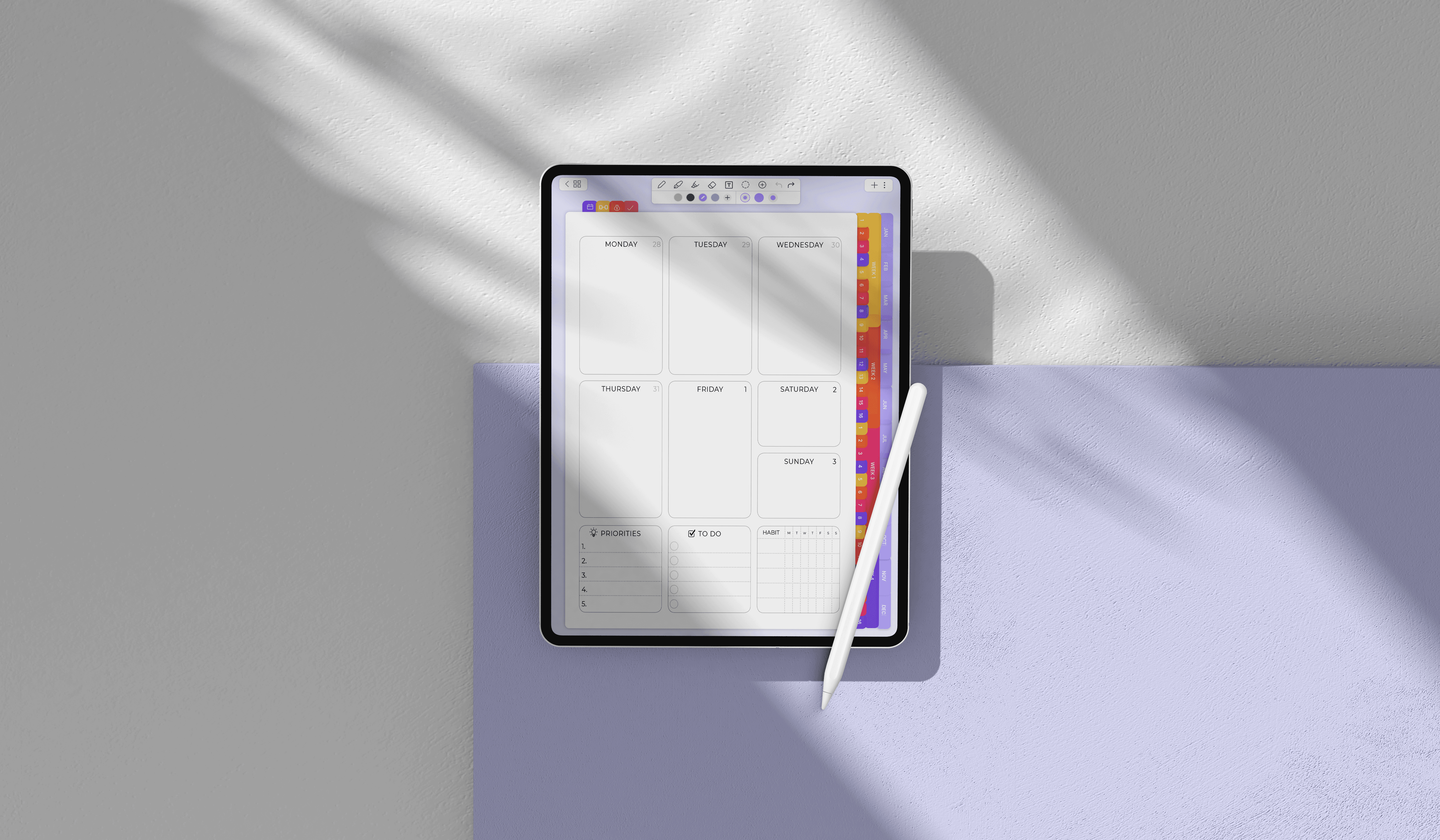
Template support: If you use digital planners, the app needs to handle imported PDFs with hyperlinks intact. Not all apps do this well.
What you can skip worrying about: Most popular apps handle the basics fine. Don't get paralyzed comparing minor features. Pick one and start using it—you can always switch later.
The Apps: Honest Assessments
GoodNotes — Best for Most People
Price: $9.99 one-time purchase (or free with limited notebooks)
GoodNotes is the default recommendation for a reason. It does everything well: smooth handwriting, strong organization, searchable handwriting across all your notes, and excellent PDF support.
Why people love it:
The writing experience is polished. Pen strokes feel natural, and there's a good variety of pen types.
Handwriting search actually works. You can find notes from months ago by searching for a word you wrote.
PDF handling is excellent—hyperlinks work, annotations are clean, and you can import digital planner templates without issues.
The folder/notebook structure is intuitive. You can organize hundreds of notes without losing track.
Where it falls short:
No audio recording. If you need to record lectures or meetings, look at Notability instead.
The shape and presentation tools are basic. Fine for notes, not ideal for design work.
Best for: Students, professionals, and anyone using digital planners. If you're not sure which app to try first, start here.
For template recommendations, see the best digital planners for GoodNotes.
Notability — Best for Lectures and Meetings
Price: Free with subscription for full features ($14.99/year)
Notability has one killer feature: audio recording that syncs to your handwriting. Tap any word in your notes, and playback jumps to that exact moment in the recording.
Why people love it:
Audio sync is genuinely transformative for students. You can write brief notes during a lecture and fill in details later by tapping your handwriting to replay what the professor said at that moment.
The writing experience is smooth and responsive.
Multi-note view lets you see two notes side by side—useful for comparing or referencing.
Good PDF annotation tools.
Where it falls short:
The subscription model is a turnoff if you just want to pay once. The free tier is limited.
Organization isn't as robust as GoodNotes. It uses dividers and subjects rather than nested folders, which gets messy at scale.
Handwriting search exists but isn't as reliable as GoodNotes.
Best for: Students who attend lectures, professionals who take meeting notes and want to capture what was said (not just what they wrote).
Apple Notes — Best Free Option (And Underrated)
Price: Free, pre-installed
People overlook Apple Notes because it's built-in and free, assuming it must be basic. It's not. For straightforward note-taking, it's surprisingly capable.
Why people love it:
It's already on your iPad. No download, no account creation, no learning curve.
Quick Note (swipe up from the corner) lets you start writing instantly, even from the lock screen.
Full Apple Pencil support with decent handwriting tools.
Smart folders and tags help organize notes automatically.
Syncs seamlessly across iPhone, iPad, and Mac via iCloud.
Where it falls short:
Limited pen customization. You get a few options, but nothing like GoodNotes' variety.
No audio recording.
PDF handling is basic—it works, but you can't import complex hyperlinked planners and expect them to function properly.
Handwriting search is hit-or-miss.
Best for: People who want simple, fast note-taking without installing anything. Great as a quick-capture tool even if you use another app for structured notes.
Microsoft OneNote — Best for Teams and Heavy Organization
Price: Free
OneNote is built for complex organization. If you think in terms of notebooks, sections, and pages—or need to share notes with a team—it's powerful.
Why people love it:
Infinite canvas. Pages aren't constrained by size; you can write anywhere.
Excellent for collaboration. Shared notebooks let teams work together in real time.
Deep integration with Microsoft 365 (Outlook, Teams, Word).
Cross-platform sync works well across Windows, Mac, iPad, and Android.
Free, with no feature restrictions.
Where it falls short:
The writing experience isn't as polished as GoodNotes or Notability. It's functional but not delightful.
Can feel cluttered and overwhelming. The flexibility is great for power users but confusing for simple note-taking.
Syncing via OneDrive is occasionally slow compared to iCloud-based apps.
Best for: Teams who need shared notebooks, people already in the Microsoft ecosystem, and anyone who needs complex hierarchical organization.
Nebo — Best for Handwriting-to-Text Conversion
Price: $9.99
Nebo takes a different approach: it treats handwriting as editable text. Write a sentence, and you can select it, edit it, and convert it to typed text instantly.
Why people love it:
Handwriting recognition is the best available. It uses MyScript's AI engine and handles messy handwriting well.
Gesture-based editing is intuitive—strike through to delete, draw a line to join words, circle to select.
Great for math and diagrams. It recognizes equations and converts them properly.
Notes export cleanly to Word, PDF, or plain text.
Where it falls short:
Not designed for long-form note-taking with lots of pages. It's optimized for shorter, text-focused notes.
No audio recording.
Less template and planner support than GoodNotes.
Best for: People who want their handwritten notes converted to clean, editable text. Particularly useful for students taking notes they'll later turn into study guides or documents.
Noteshelf — Best for Aesthetic Customization
Price: $14.99
Noteshelf appeals to people who care about how their notes look. It has the most paper templates, pen styles, and visual customization options.
Why people love it:
Huge template library—planners, dot grids, Cornell notes, specialty papers.
Highly customizable writing tools with realistic ink effects.
Audio notes included.
Supports cloud sync across multiple services (Dropbox, Google Drive, OneDrive).
Where it falls short:
The interface feels busier than GoodNotes.
Handwriting search is less accurate than top competitors.
Smaller user community means fewer third-party templates and tutorials.
Best for: Visual thinkers who want beautiful, highly customized notebooks and enjoy the aesthetic side of note-taking.
Quick Comparison
App | Best For | Price | Audio | Handwriting Search | Planner Support |
|---|---|---|---|---|---|
GoodNotes | All-around use, digital planners | $9.99 | ❌ | ✅ Excellent | ✅ Excellent |
Notability | Lectures, meetings with recording | Free/$14.99/yr | ✅ Synced | ✅ Good | ✅ Good |
Apple Notes | Quick capture, simplicity | Free | ❌ | ⚠️ Basic | ⚠️ Limited |
OneNote | Teams, complex organization | Free | ✅ | ✅ Good | ✅ Good |
Nebo | Handwriting-to-text conversion | $9.99 | ❌ | ✅ Excellent | ⚠️ Limited |
Noteshelf | Visual customization | $14.99 | ✅ | ⚠️ Basic | ✅ Good |
How to Choose
If you're not sure, start with GoodNotes. It's the safest bet—good at everything, excellent for digital planners, and a one-time purchase. Most people who try it stick with it.
If you record lectures or meetings, get Notability. The audio sync feature alone justifies it for students and anyone who needs to capture spoken content.
If you're just taking quick notes and don't want to spend money, try Apple Notes first. You might find it's enough. If you outgrow it, you'll know what features you actually need.
If you work with a team or use Microsoft 365, consider OneNote. The collaboration features and integration with Outlook/Teams are genuinely useful in a work context.
If you want to convert handwriting to text regularly, Nebo is worth it. The recognition quality is noticeably better than competitors.
Getting More Out of Your Setup
Once you've picked an app, here's how to make it actually useful:
Import a planner template. A blank notebook is hard to stick with. A structured digital planner gives you a system to follow. See our best free digital planners for 2026 for recommendations.
Use Split View. Keep your notes open alongside your calendar, browser, or video call. This is one of the iPad's biggest advantages over paper.
Create a consistent structure. Whether it's folders by project, notebooks by semester, or tags by topic—pick a system early. It's painful to reorganize hundreds of notes later.
Try time blocking. If you struggle with focus, use your planner for time blocking on iPad—scheduling specific tasks into specific time slots.
Do weekly reviews. Every week, spend 10 minutes reviewing your notes and planning. Here's a guide to weekly planning on iPad.
Frequently Asked Questions
Do I need an Apple Pencil? Strongly recommended, yes. You can take typed notes without one, but handwriting—the main reason to use a tablet for notes—requires a stylus. The Apple Pencil's pressure sensitivity and palm rejection are noticeably better than third-party alternatives, though the Logitech Crayon is a decent budget option.
Which iPad models support Apple Pencil? Most iPads sold since 2018 support Apple Pencil. The 1st-gen Pencil works with older iPads (Lightning connector); the 2nd-gen Pencil works with newer iPads with magnetic attachment. Check Apple's compatibility page for your specific model.
Can I search my handwritten notes? In GoodNotes, Notability, Nebo, and OneNote—yes. The quality varies (GoodNotes and Nebo are best), but you can search for words you wrote by hand and find them across your notebooks.
Can I use these apps with digital planners? GoodNotes is the most popular choice for digital planners because it handles hyperlinked PDFs well. Notability and Noteshelf also work. Apple Notes is not recommended for complex planners. See our digital planner app comparison for details.
What if I'm just starting out? Download GoodNotes, import a free digital planner, and use it for a week. You'll quickly learn what matters to you. For a complete walkthrough, see how to start digital planning.
Resources: