Switching From Paper To Digital Planning
Thinking of switching from paper planner to iPad? Learn how to go paperless, move your planner to iPad, and decide if a digital setup is right for you.
Key Takeaways
Digital planning isn't about abandoning what works—it's about removing what doesn't (lost notebooks, wasted pages, zero searchability).
The transition doesn't have to be all-or-nothing. Many people keep a paper notebook alongside their iPad.
You don't need the newest iPad. Any model with Apple Pencil support works fine.
The real payoff comes after 2–3 weeks, once the new habits click into place.
Why Switch? (And Why Now?)
If your paper planner is working perfectly, keep using it. But if you've ever:
Flipped through pages trying to find something you wrote down months ago
Lost a planner (or had one get water-damaged, dog-chewed, or left on a plane)
Run out of space in a section while other sections sit empty
Bought a new planner in January only to abandon it by March
...then you've experienced the limits of paper.
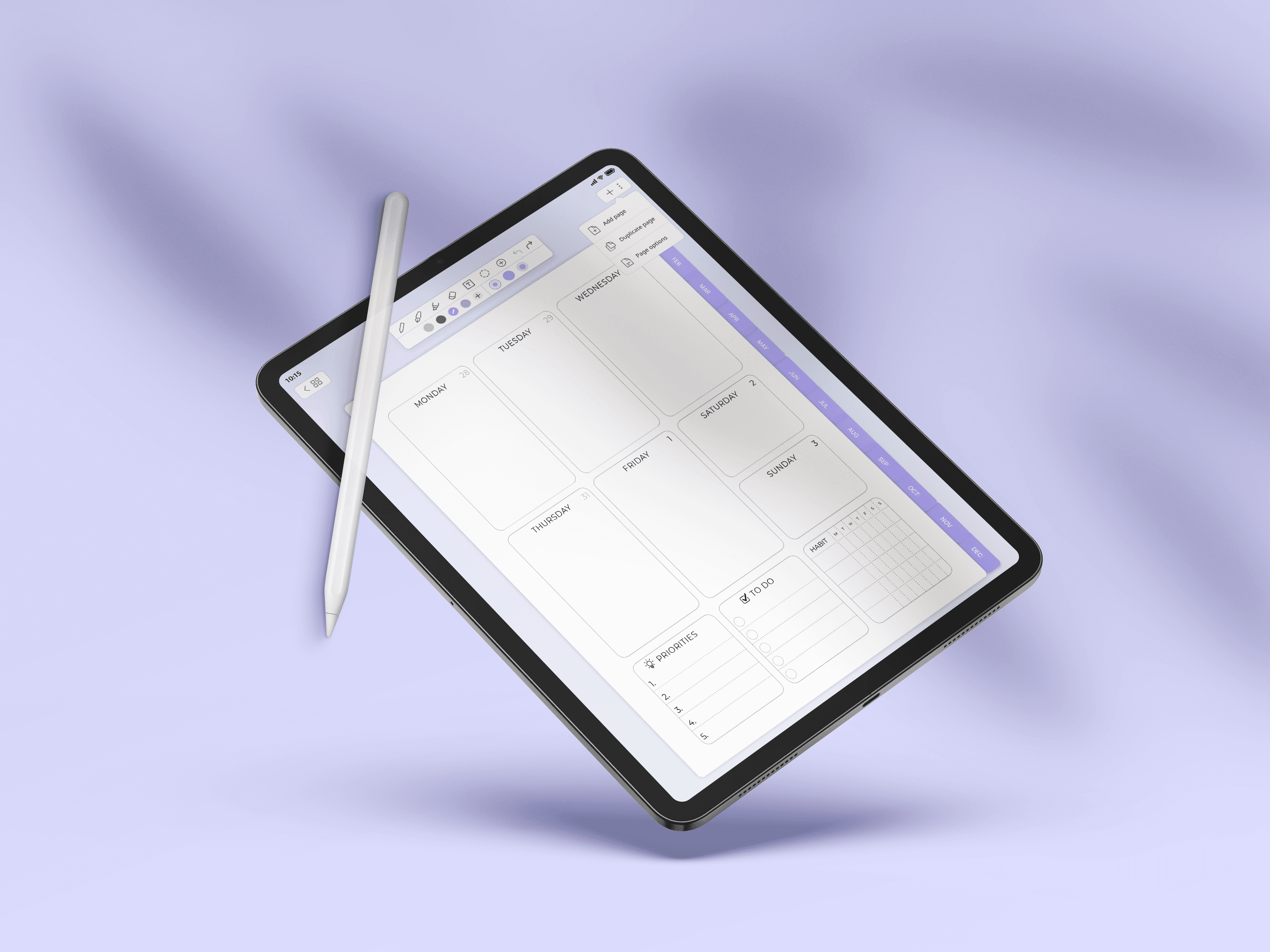
Digital planning doesn't replace the act of writing things down—you still use a stylus and your own handwriting. What it replaces is the rigidity. Pages can be duplicated, moved, or deleted. Layouts can be swapped mid-year. And everything syncs to the cloud, so losing your iPad doesn't mean losing your system.
For a broader look at what digital planning actually involves, see our complete beginner's guide.
What You Actually Need
The barrier to entry is lower than you might think.
Hardware
iPad: Any iPad with Apple Pencil support works. You don't need a Pro—the base iPad or iPad Air handles planning apps without issue. Refurbished models are a smart way to save money.
Apple Pencil: Highly recommended. Third-party styluses work, but the Pencil's pressure sensitivity and palm rejection make handwriting feel natural. If you're on a budget, the 1st-gen Pencil or Logitech Crayon are solid alternatives.
Screen protector (optional): A matte "paper-feel" screen protector adds friction that mimics writing on paper. Some people love it; others find it unnecessary.
Apps
You only need one app to start. Here are the main options:
GoodNotes — The most popular choice for digital planning. Clean interface, excellent handwriting recognition, and strong template support. Great for beginners. See our guide to the best planners for GoodNotes.
Notability — Similar to GoodNotes, with the added bonus of audio recording synced to your notes. Useful for students or anyone who takes notes in meetings.
Plannora — Built specifically for digital planning rather than general note-taking.
Not sure which to pick? Here's a detailed app comparison.
Templates
You'll want a digital planner PDF to write on. Options range from free to $20+:
Million Dollar Habit freebie library (stickers, inserts, templates)
The Real Cost Comparison
Let's be honest about the math.
Paper Planning | Digital Planning | |
|---|---|---|
Year 1 | $30–60 (planner + supplies) | $300–500 (iPad + Pencil + app) |
Year 2+ | $30–60/year | $0–15/year (new templates) |
Break-even | — | ~5–7 years |
Digital planning has a higher upfront cost. But if you already own an iPad (or plan to use it for other things), the incremental cost is just the app and templates—often under $20 total.
The real value isn't in saving money. It's in having a system that actually works: searchable, backed up, and flexible enough to change when your life does.
How to Make the Switch
Week 1: Set Up Your System
Day 1–2: Get your tools ready
Download your planning app (GoodNotes, Notability, or Plannora)
Import a planner template (start with something simple—you can always upgrade later)
Spend 10 minutes tapping through the hyperlinked tabs to learn how navigation works
Day 3–7: Start using it
Plan your week. Just the basics: appointments, deadlines, top priorities.
Don't try to recreate your entire paper system yet. The goal is to build the habit of opening the app.
Week 2: Migrate What Matters
Not everything in your paper planner needs to come with you. Focus on:
Active projects and goals — Anything you're currently working toward
Recurring events — Birthdays, bill due dates, regular appointments
Reference info you actually use — Contact lists, account numbers, key dates
Skip the old meeting notes and finished to-do lists. They served their purpose.
To digitize paper content:
Use your iPad's built-in document scanner (in the Notes or Files app)
Or use a dedicated app like Adobe Scan
Import scanned pages into your planner as reference material
Week 3+: Refine and Expand
Once the basics feel comfortable:
Experiment with weekly planning layouts
Add a goal-tracking section
Try time blocking if you struggle with focus
Create custom layouts that fit your specific needs
Tips for Actually Sticking With It
Keep your iPad accessible. If it's in a drawer, you won't use it. Treat it like you'd treat a paper planner—on your desk, in your bag, somewhere visible.
Set a daily trigger. Tie your planning to an existing habit: first thing with morning coffee, right after lunch, or as part of your wind-down routine. Five minutes is enough.
Use Split View. On iPad, you can run two apps side by side. Keep your planner open next to your calendar, email, or browser while you work.
Start simple. The temptation is to build an elaborate system with trackers for everything. Resist it. A weekly spread and a simple to-do list will take you further than a complex setup you abandon.
Give yourself three weeks. New tools feel clunky at first. The handwriting feels different. The navigation takes a second. This is normal. By week three, muscle memory kicks in and it starts to feel natural.
You Don't Have to Go All-In
Plenty of people use a hybrid system:
iPad for scheduling and long-term planning — Calendar views, goal tracking, project planning
Paper for daily capture — Quick notes, brainstorming, meeting scribbles
There's no rule that says you have to pick one. Use whatever combination actually gets used.
Common Questions
Do I need an expensive iPad? No. The base iPad (with Apple Pencil support) handles planning apps without issue. Refurbished models from Apple or trusted resellers are a smart way to save $100–200.
Is Apple Pencil required? Not strictly, but it's strongly recommended. The writing experience is significantly better than finger input or cheap styluses. If budget is tight, look at the 1st-gen Pencil or Logitech Crayon.
What if I miss paper? You might! Some people switch fully and never look back. Others keep a small paper notebook for quick capture and use the iPad for everything structured. Try it for a month and see what feels right.
What's the best app for beginners? GoodNotes is the most common recommendation. It's intuitive, well-documented, and has the largest library of compatible templates. See our full app comparison for more options.
Ready to Start?
Here's your first step:
Import it into GoodNotes or your app of choice
Plan tomorrow—just tomorrow
You can figure out the rest as you go. The system will grow with you.
More resources: