Weekly Planning on iPad for Better Productivity and Organization
Master weekly planning on iPad with our ultimate guide! Learn daily digital routines, digital weekly reviews, and monthly resets to boost your productivity.
Key Takeaways
Weekly planning is the sweet spot—daily is too granular, monthly is too vague. The week is where real work gets organized.
You don't need a complicated system. A weekly spread, a daily check-in, and a short review at the end of the week covers most of what matters.
The iPad makes this easier because everything syncs, nothing gets lost, and you can write by hand if you want to.
Consistency beats perfection. Five minutes every morning is worth more than an elaborate system you abandon.
Why Weekly Planning Works
Daily planning is useful, but it's too zoomed in. You're managing tasks, not direction. Monthly planning gives you the big picture, but it's too far out to be actionable. A lot can change in a month.
The week is the right frame. It's long enough to make meaningful progress on something, short enough to course-correct when things go sideways. Most work happens in weekly rhythms anyway—meetings, deadlines, routines.
When I started taking weekly planning seriously, the biggest shift wasn't productivity. It was the feeling of being less scattered. I knew what mattered this week. I could say no to things that didn't fit. I stopped waking up wondering what I was supposed to be doing.
If you're new to digital planning entirely, start with our beginner's guide first. Get the basics down, then come back here.
Setting Up Your Weekly System
You need three things: an app, a template, and about 20 minutes to set it up.
Pick an app
Any of these work well:
GoodNotes — Best for handwriting. Handles planner templates well. One-time $9.99 purchase.
Notability — Similar to GoodNotes, plus audio recording synced to your notes. Good if you take meeting notes.
Plannora — Built specifically for digital planning.
Noteshelf — More visual customization options if that matters to you.
Don't overthink this. They all do the job. Pick one and move on. We have a full app comparison if you want details.
Get a weekly template
You need a PDF planner with a weekly spread. Options:
Or build your own if you have specific needs.
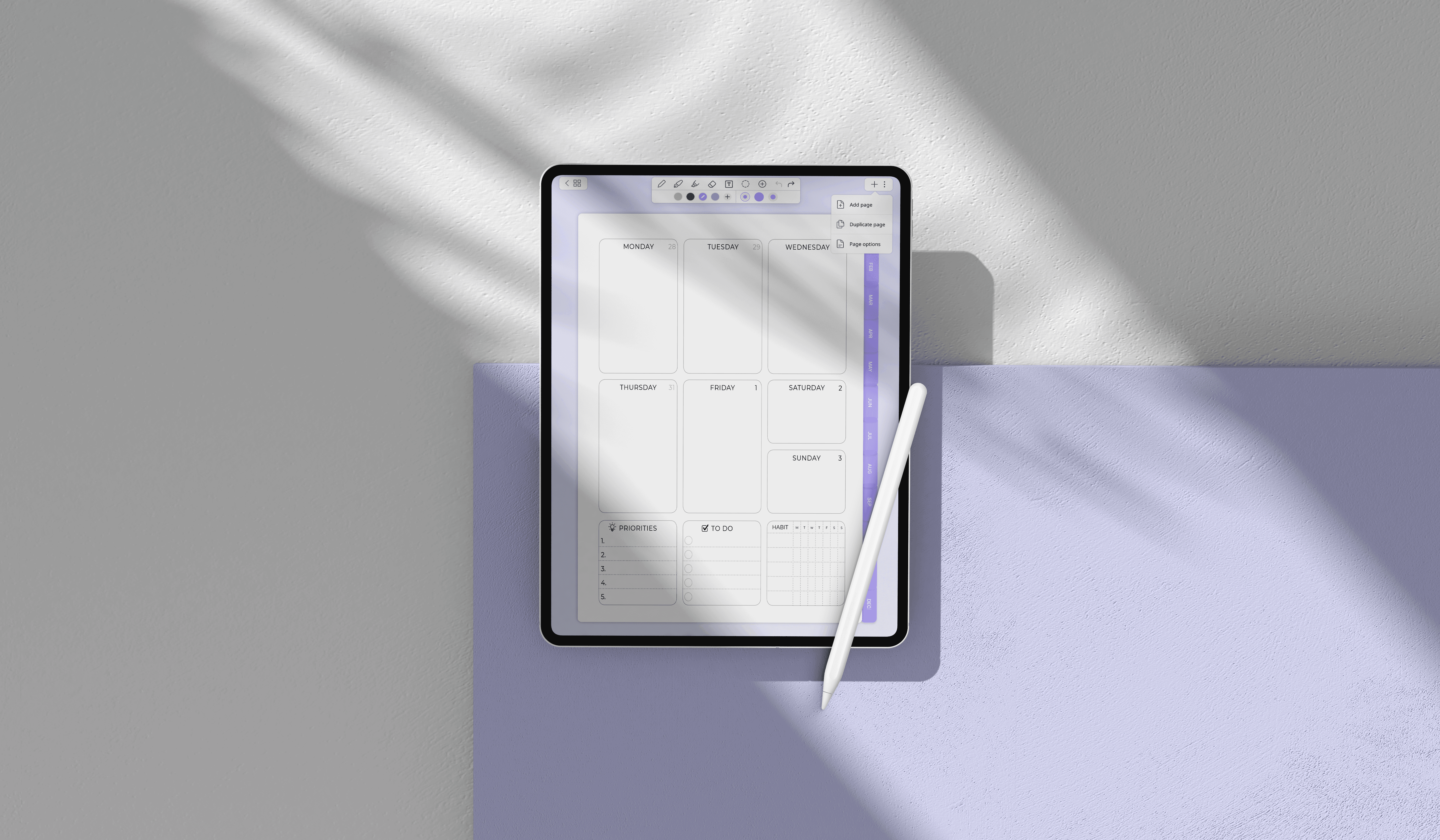
What your weekly spread should include
At minimum:
Each day of the week with space to write tasks or appointments
A "top 3" section — the three things that actually matter this week
A notes area — for overflow, ideas, or things that don't fit elsewhere
Optional but useful:
Habit tracker — if you're actively building habits
Time blocks — if you schedule your day by the hour
Weekend section — some people plan weekends differently than weekdays
Weekly review prompts — a few questions to answer at the end of the week
Don't add everything at once. Start simple, notice what's missing, and add it later.
The Daily Check-In (5 Minutes)
Weekly planning doesn't mean you only plan once a week. You still need a quick daily ritual to stay connected to your system.
Morning (2-3 minutes):
Open your planner
Look at today's schedule and tasks
Pick 1-3 things that really need to happen today
Adjust anything that shifted overnight
Evening (2-3 minutes):
Check off what got done
Move unfinished tasks to tomorrow or later in the week
Jot down anything on your mind for tomorrow
That's it. You're not journaling or doing elaborate reviews. You're just touching base with your plan so it stays current.
The key is doing it consistently. Five minutes every day beats 30 minutes once a week. The daily check-in keeps you from losing track of what matters.
If you want to build a more detailed daily routine, we have a time blocking guide that goes deeper.
The Weekly Review (15-20 Minutes)
This is the engine of the whole system. Once a week, you step back and look at the bigger picture.
When to do it:
Sunday evening (sets you up for Monday)
Monday morning (fresh start energy)
Friday afternoon (close out the work week)
Pick whatever fits your rhythm. I do Sunday nights because Monday mornings are already hectic.
What to do:
Look back at the week
What got done? What didn't?
What went well? What was frustrating?
Any patterns you notice?
Process loose ends
Tasks that didn't get done: delete them, move them forward, or delegate them
Notes or ideas you captured: decide what to do with them
Anything lingering in your head: get it into your system
Plan the next week
What are your top 3 priorities for next week?
What's on your calendar that you need to prepare for?
Any deadlines approaching?
Adjust your system
Is anything in your planner not getting used? Remove it.
Is something missing? Add it.
Does your layout still work, or do you need to change something?
The weekly review is where planning stops being reactive and starts being intentional. Without it, you're just managing tasks day to day. With it, you're actually steering.
David Allen's GTD method treats the weekly review as non-negotiable. Even if you don't follow GTD, the principle holds: regular review is what keeps a system working.
The Monthly Reset (30-45 Minutes)
Once a month, zoom out further. This isn't about tasks—it's about direction.
What to do:
Review the past month
Flip through your weekly spreads. What themes do you notice?
Did you make progress on your bigger goals?
What drained your energy? What gave you energy?
Clean up your system
Archive completed projects
Delete tasks you're never going to do
Update any trackers (habits, goals, budgets)
Set intentions for next month
What do you want to focus on?
Any big deadlines or events coming up?
What would make this month feel successful?
Refresh your planner (optional)
New monthly spread
Updated wallpaper or theme if you're into that
Add any new sections you need
The monthly reset prevents your system from getting stale. Without it, planners accumulate clutter and stop feeling useful.
For wallpapers and visual refreshes: Million Dollar Habit wallpapers
Making It Stick
Keep your iPad visible. If it's in a drawer, you won't use it. On your desk, in your bag, on your nightstand—wherever you'll actually see it.
Use widgets. Put a calendar or reminders widget on your home screen. It's a visual cue to check in with your system.
Set a recurring reminder. At least for the first month, schedule a reminder for your morning check-in and your weekly review. Eventually it becomes automatic.
Start smaller than you think. If five minutes feels like too much, do two minutes. The habit matters more than the duration.
Connect it to something you already do. Morning coffee. After lunch. Before bed. Attach planning to an existing routine and it's easier to remember.
Don't chase perfection. Some weeks you'll miss your review. Some days you won't check in. That's fine. Just pick it back up. A system that's used 80% of the time beats one that's abandoned because it felt too demanding.
Integration With Other Apps
Your planner doesn't have to do everything. You can connect it to other tools:
Calendar apps (Google Calendar, Apple Calendar): Keep time-based stuff in your calendar. Reference it from your planner, or just glance at it during your daily check-in.
Task managers (Things 3, Todoist, Apple Reminders): Some people keep detailed tasks in a dedicated app and use the planner for high-level priorities. Others keep everything in the planner. Either works—just be consistent.
Notes apps: For longer notes, meeting minutes, or reference material that doesn't fit in your planner.
The key is knowing where things live. Don't split the same type of information across three apps—you'll lose track of it.
Sample Weekly Layout
Here's a simple structure that works for most people:
Monday through Friday:
Top 3 priorities for the day
Time blocks or task list (however you work)
Small checkbox section for small tasks
One-line evening reflection: "Win of the day" or "Note for tomorrow"
Saturday and Sunday:
Less structured—space for personal tasks, rest, or whatever you need
Weekly review section (can be just a few prompts)
Sidebar or top section:
Week's main focus (one sentence)
Habit tracker if you use one
Quick navigation to other sections
You can find templates structured like this in the freebie library or build your own in Canva.
When Weekly Planning Isn't Enough
Sometimes a weekly view doesn't cut it:
For complex projects: You might need a dedicated project page with milestones, tasks, and deadlines. Keep it separate from your weekly spread but reference it there.
For long-term goals: A goal planner helps you track progress over months. The weekly plan connects to it, but they're different tools.
For daily detail: If your days are heavily scheduled (lots of meetings, appointments, time-sensitive tasks), you might need a daily spread in addition to the weekly view. Time blocking works well for this.
The weekly plan is the hub, but you can add spokes as needed.
FAQ
How long should weekly planning take? The initial setup takes 15-20 minutes. After that, daily check-ins are 5 minutes, and weekly reviews are 15-20 minutes. Monthly resets take 30-45 minutes. It sounds like a lot, but it saves way more time than it costs.
What if I miss a day or skip my review? Just start again. Don't try to "catch up" by reviewing every day you missed. Look at where you are now and plan forward. The system is meant to help, not punish you.
Should I plan weekends? Up to you. Some people plan weekends the same as weekdays. Others leave them unstructured on purpose. I keep Saturday and Sunday in my weekly spread but write less in them.
Paper or digital for weekly planning? Either works. Digital has advantages: search, sync, backup, unlimited space. But paper is fine if you prefer it. We wrote about making the switch if you're on the fence.
What's the best app for weekly planning? GoodNotes is the most popular for a reason—solid all around, works well with templates. But Notability, Plannora, and Noteshelf all work. Full comparison here.
Resources: